How to Bulk Resize and Compress Images for Free (Unlimited Batch Tool)
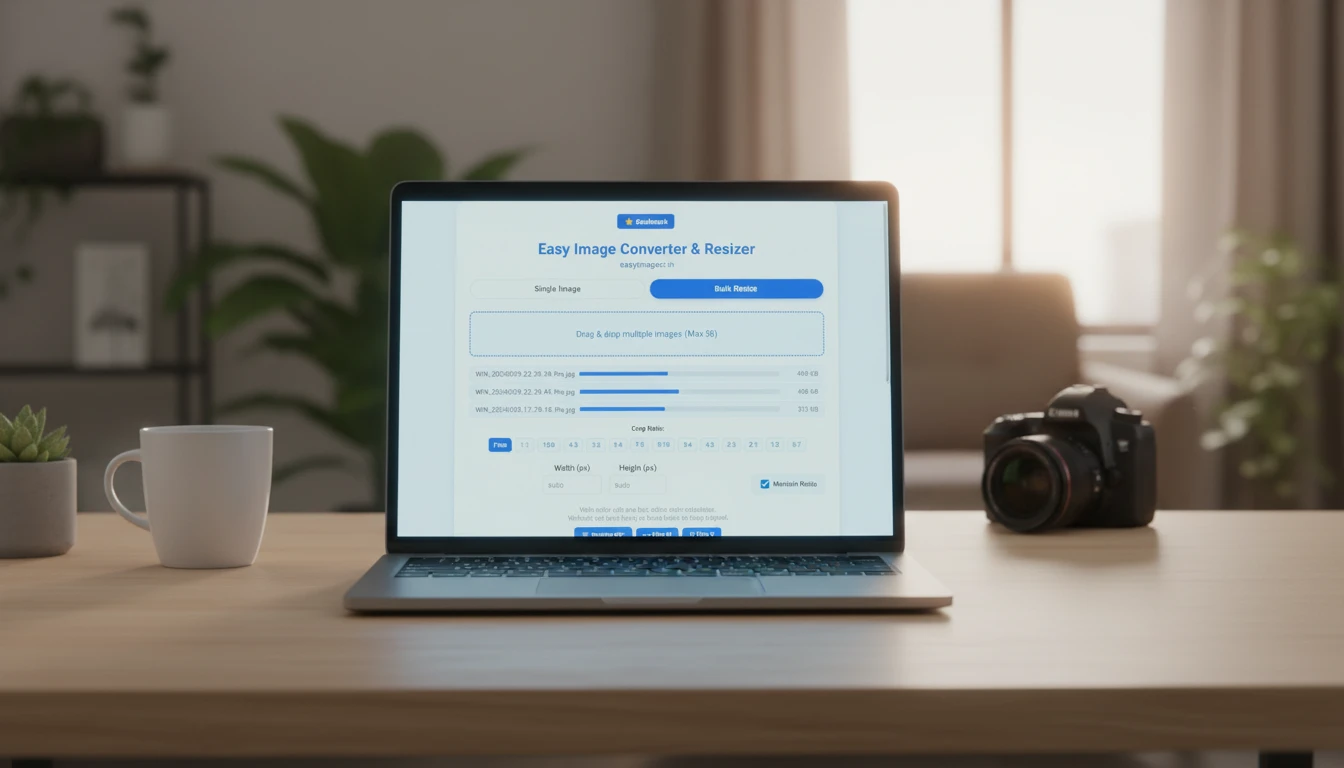
Summary: Resizing images one by one is a waste of time. Whether you are a photographer, e-commerce seller, or just organizing a holiday album, this guide shows you how to process 50+ images instantly using our private, browser-based Bulk Resizer.
If you have ever tried to email a folder of vacation photos or upload a new product collection to Shopify, you know the pain. You have 50 huge, high-quality images, and you need them all to be smaller, lighter, and in the same format.
Doing this manually—opening each file, resizing it, and saving it—can take hours. Most online tools force you to upload files to a slow server, wait for processing, and then download a messy ZIP file. They often limit you to 5 or 10 images at a time unless you pay.
We built EasyImageCR.in to solve this. Our Bulk Resize feature runs 100% in your browser, meaning it is faster, safer, and has no artificial limits.
Why Use Client-Side Bulk Processing?
Unlike traditional server-based tools, our tool uses your computer's own power to process the images. This offers huge advantages:
- Unlimited Speed: You don't have to wait for 500MB of photos to upload over your internet connection. The moment you drop them, processing starts.
- 100% Privacy: Your personal family photos or confidential business documents never leave your device. We cannot see them, and neither can hackers.
- No "Daily Limits": Process as many batches as you want. We don't stop you after 10 photos.
✅ The 4-Step Bulk Workflow
Ready to save hours of work? Here is how to process a whole folder of images in seconds.
Step 1: Select "Bulk Resize" Mode
Go to the homepage and click the "Bulk Resize" tab at the top of the tool. The interface will change to accept multiple files.
Step 2: Drag & Drop Your Folder
Select up to 50 images from your computer and drag them into the drop zone. You will see a list of all your files appear instantly.
Step 3: Choose Your Settings
Whatever settings you choose will apply to ALL images in the batch.
- Resize: Set a width (e.g., 1920px) to make all images uniform.
- Format: Convert everything to WEBP or JPEG for the web.
- Compress: Use the "Quality" slider (e.g., 90%) to reduce file size without losing sharpness.
- Privacy: Check "Remove Metadata" to strip GPS data from all photos at once.
Step 4: Batch Process & Download
Click the "Batch Process & Download All" button.
Note: Your browser might ask for permission to download multiple files. Click "Allow". The tool will then rapidly process and download each optimized image directly to your default downloads folder. No waiting for a ZIP file!
Common Use Cases for Bulk Resizing
- Real Estate Agents: Resize 50 high-res property photos to under 500KB for MLS listings.
- E-commerce Sellers: Convert a batch of PNG product shots to fast-loading WEBP for Shopify or Amazon.
- Photographers: Create a "web-sized" copy of a wedding shoot for a client preview gallery.
- Archiving: Convert old BMP or TIFF scans to efficient JPEGs to save hard drive space.
Stop wasting time on repetitive tasks. Switch to the Bulk Resize tab today and get your work done in seconds, not hours.
⬅ Back to Blogs