How to Compress Images Without *Visible* Quality Loss
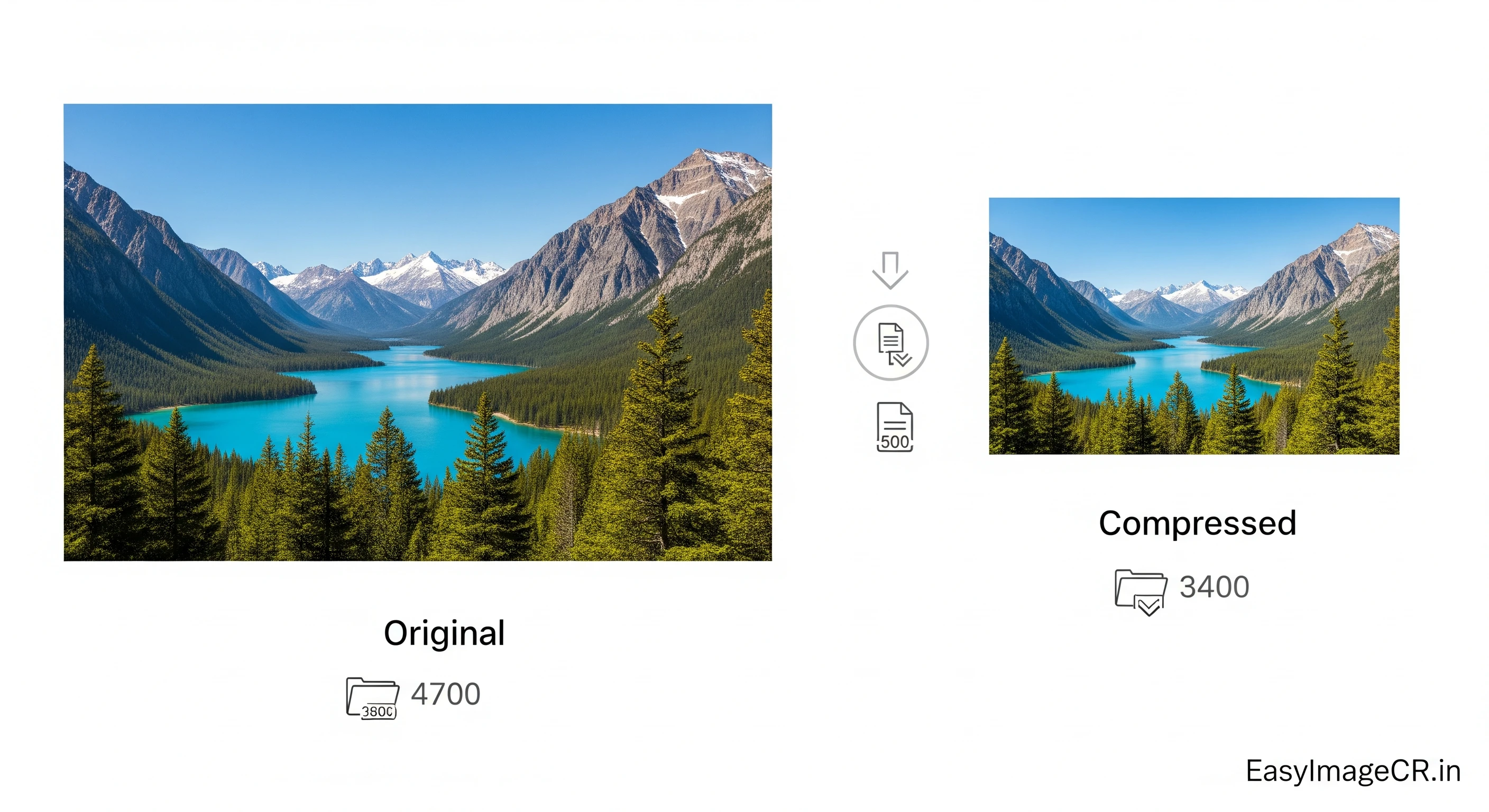
Let's be honest: the phrase "compress without losing quality" is a bit misleading. True "lossless" compression (like a ZIP file or PNG) doesn't lose any data, but it also doesn't make photo files much smaller.
When people ask this, they mean "how can I make my file size smaller without it looking bad?" This is called smart compression, or "lossy" compression, where you strategically discard data that the human eye won't miss.
Your 5MB camera photo and a 100KB version of it can look identical on a website if you do it right. Here’s how.
1. Choose the Right Format for the Job
Before you even touch a quality slider, make sure you're using the right format. This is the single biggest factor.
- Use JPG for: All photographs. Its compression is specifically designed for the millions of colors and complex gradients in a photo.
- Use PNG for: Logos, icons, text, or any image that needs a transparent background. Compressing a photo as a PNG will result in a *massive* file.
- Use WEBP for: Everything. This modern format from Google provides superior compression for *both* photos and graphics. A WEBP photo is often 25-35% smaller than an identical-quality JPG.
2. The "Quality" Slider Is Not a Magic Number
When you save a JPG or WEBP, you're given a "quality" slider, usually from 0 to 100.
- 100% Quality: This is basically "turn off most compression." It results in a large file and is almost always unnecessary.
- 90% Quality: This is often the sweet spot. It provides a huge file size reduction (often 50-70%) with virtually zero visible difference from the 100% original.
- 75-85% Quality: This is the standard for web use. You get a tiny file, and while a graphic designer might see a *slight* difference if they zoom in, your average user will not.
- Below 70%: You will likely start to see "artifacts"—blurry edges, blocky colors, and a general loss of sharpness.
3. Resize First, Then Compress
Never compress a 5000px-wide photo. You are forcing the compressor to analyze 15 million pixels. It's much more efficient to resize the image to its target dimensions (like 1200px wide for a blog) *first*, and *then* apply compression. A smaller image compresses much more effectively.
✅ The Best Workflow: Resize, Convert, and Compress All at Once
You can experiment to find the best settings yourself using a simple, private tool. EasyImageCR.in lets you do all of this in your browser without uploading your files.
Try this experiment:
- Upload a large photo (e.g., a 4MB JPG from your phone).
- First, just convert it to WEBP format at 90% quality. Download it.
- Now, upload the *original* photo again. This time, change the format to JPEG at 90% quality. Download it.
Compare the two new files. The WEBP image will look just as sharp as the JPEG but will likely be significantly smaller in file size. This is "smart compression" in action.
For most users, the simplest method is: Upload Image ➔ Select WEBP Format ➔ Set Quality to 85-90% ➔ Download.
You'll get a web-ready, high-quality image that is a fraction of its original size.
Don't be afraid to compress. Your website visitors, and Google, will thank you for the faster load times.
⬅ Back to Blogs