How to Make Custom Emojis & Stickers for Discord & Slack (Exact Size Guide)
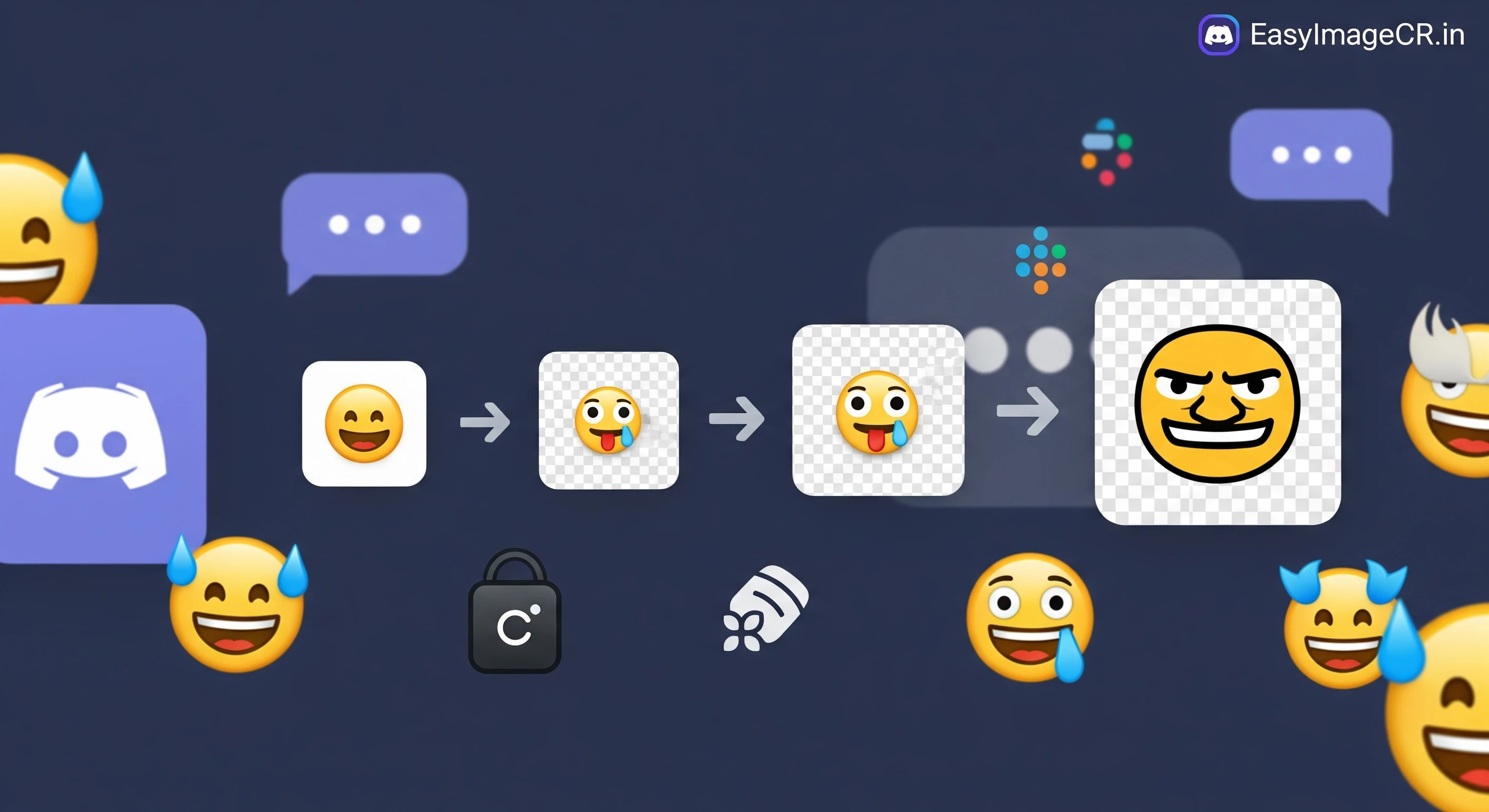
Summary: Trying to upload a funny meme or inside joke as a custom emoji? If you get the error "File too big (256KB)" or "Image too large," this guide is for you. We explain the strict requirements for Discord and Slack and show you how to resize any image to fit perfectly in seconds.
Custom emojis (or "emotes") are the lifeblood of any online community. Whether you run a Discord server for gaming or a Slack workspace for your company, having unique, custom stickers makes communication fun and personal.
However, these platforms have strict technical limits. You can't just upload a 4K photo of your cat and expect it to work. It will either be rejected immediately or, worse, it will be shrunk down automatically and become a blurry, unrecognizable blob.
Here is everything you need to know to create crisp, clean, and fast-loading emojis for 2026.
1. Discord Emoji Requirements
Discord is the most popular place for custom emotes. To make your server look professional (or just hilarious), you need to hit these numbers exactly:
- File Size: Strict limit of 256 KB. Anything larger will be rejected.
- Dimensions: Discord recommends 128 x 128 pixels.
Note: You *can* upload larger images, and Discord will shrink them, but this often makes them blurry. It is much better to resize them yourself to 128px so you can control the sharpness. - Aspect Ratio: 1:1 (Square). If you upload a rectangle, it will be squashed or have tiny black bars.
- Format: PNG (for transparent backgrounds) or JPG. GIFs are allowed for animated emojis (Nitro only).
2. Slack Emoji & Sticker Requirements
Slack is slightly different but equally strict:
- File Size: Under 64 KB (Yes, that is tiny!).
- Dimensions: Strictly 128 x 128 pixels.
- Format: JPG, PNG, or GIF.
The Secret to "Clean" Emojis: Transparency
The difference between a "pro" emoji and a "noob" emoji is the background.
Bad: A square photo of a face with a white box around it. It looks like a sticker that wasn't peeled off properly.
Good: A "cutout" of the face with a transparent background. This allows the emoji to blend perfectly into Dark Mode or Light Mode chats.
Tip: Always save your custom emojis as PNG files to preserve transparency. JPGs do not support transparency and will turn your background white.
✅ The 3-Step Workflow: Create a Perfect Emoji in 30 Seconds
You don't need Photoshop to do this. You can use our free, private browser tool, EasyImageCR.in.
Step 1: Crop to a Square (Crucial!)
Upload your meme or photo to our tool. Click the "1:1" crop button. Drag the image to center the face or object perfectly. This ensures your emoji isn't stretched.
Step 2: Resize to 128px
In the "Width (px)" box, type 128. Ensure "Maintain Ratio" is checked. The height will automatically become 128. This is the "Golden Size" for both Discord and Slack.
Step 3: Compress to Target Size
This is the magic step.
- Select "Target Size (KB)" mode.
- For Discord: Type 250 (safely under the 256KB limit).
- For Slack: Type 60 (safely under the 64KB limit).
- Select PNG format (to keep transparency) or WEBP (for even smaller size if supported).
Step 4: Download & Upload
Click "Resize & Download". You now have a file that is guaranteed to be accepted by the upload form, with zero errors.
Bonus: How to Make "Stickers" (The Big Ones)
Both platforms now support "Stickers," which are larger, higher-quality images that appear big in the chat (like Facebook Messenger stickers).
- Discord Stickers: 320 x 320 pixels. Format: PNG or APNG.
- Workflow: Follow the same steps above, but set the Width to **320** instead of 128.
Stop fighting with error messages. Use the right tool, hit the right pixel count, and start spamming your new custom emotes today!
⬅ Back to Blogs