How to Convert HEIC to JPG (The Quick & Private Way)
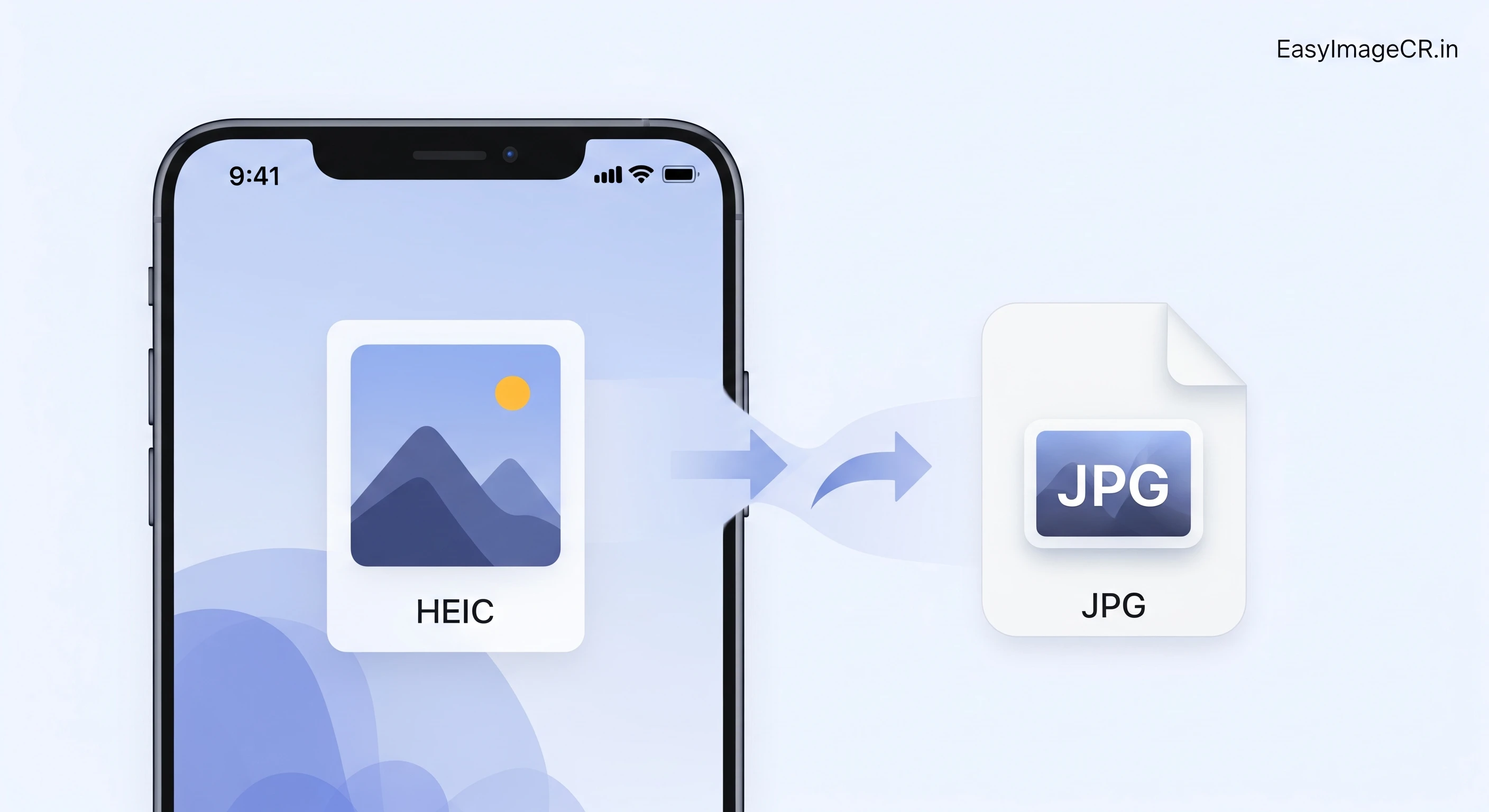
You take a beautiful photo on your iPhone, send it to your Windows PC or upload it to a website, and... "File not supported." Or you see a blank icon with the file extension .heic. What is this file, and why isn't it a JPG?
What is HEIC?
HEIC stands for High-Efficiency Image Format. Starting with iOS 11, Apple made this the default format for taking photos on iPhones and iPads. Why? Because it's better than JPG in almost every way.
- Smaller File Size: A HEIC photo can be up to 50% smaller than the same photo saved as a JPG, with the same (or better) quality.
- More Features: It can store multiple images in one file (like Live Photos), supports transparency like a PNG, and can store 16-bit color (vs. JPG's 8-bit).
It's a superior format. But it has one major problem: compatibility. Most of the world, including many web browsers, Windows applications, and online forms, still expects the universal JPG format.
HEIC vs JPG: Quick Comparison
| Feature | HEIC (iPhone) | JPG (Universal) |
|---|---|---|
| File Size | Very Small (High Efficiency) | Larger (Standard) |
| Quality | Excellent (16-bit color) | Good (8-bit color) |
| Compatibility | ❌ Low (Apple only) | ✅ High (Works everywhere) |
Solution 1: The Instant & Private Way (Recommended)
Most online converters ask you to upload your personal photos to their servers. You have no idea who sees them, how long they are stored, or if they are sold. For family photos or documents, this is a huge risk.
We have solved this.
✅ Convert HEIC Locally with EasyImageCR
We have updated our tool to support HEIC files natively. Because we use advanced browser technology, your photos never leave your device. The conversion happens 100% on your phone or computer processor.
How to do it:
- Go to the EasyImageCR Home Page.
- Drag & drop your .HEIC file (or select it from your gallery).
- Our tool will instantly convert it to a viewable image in your browser.
- Select "JPEG" (for standard photos) or "PNG" from the Format list.
- Click "Resize & Download".
It is fast, free, and completely private.
Solution 2: Change Your iPhone Settings (Permanent Fix)
If you prefer to stop your iPhone from taking HEIC photos altogether, you can tell it to save them as JPGs by default. This will use up more storage space, but your photos will be compatible everywhere instantly.
⚙️ How to Switch iOS Camera to JPG:
- Go to Settings on your iPhone.
- Scroll down and tap on Camera.
- Tap on Formats.
- Change the setting from "High Efficiency" (which is HEIC) to "Most Compatible" (which is JPG).
Solution 3: For Android Users (Samsung, Pixel, etc.)
Many modern Android phones (especially Samsung Galaxy) also shoot in HEIC to save space. Here is how to fix it:
⚙️ How to Switch Android Camera to JPG:
- Open your Camera app.
- Tap the Settings (Gear Icon).
- Look for "Picture Formats" or "Advanced Picture Options".
- Turn OFF "High Efficiency Pictures" (HEIF/HEIC).
Solution 4: The "Share" Menu Trick
If you just need to convert one photo quickly without a tool, try sharing it via email.
When you open a photo in the iOS Photos app and share it to the Mail app, Apple automatically converts the file to JPG to ensure the recipient can read it. You can email it to yourself and download the JPG attachment.
However, for bulk conversion or keeping photos on your device, Solution 1 is much faster.

About the Author
The EasyImageCR Team is a group of web performance enthusiasts and developers dedicated to making the internet faster and more accessible. We build privacy-focused tools that help students, professionals, and creators optimize their digital assets without technical hurdles.
⬅ Back to Blogs