How to Resize AI-Generated Cover Art for Apple Music, Spotify & Other DSPs
When indie artist Maya finished an AI-generated cover for her new single, she felt a rush...
The mismatch: AI tools vs distributor requirements
Most consumer AI image tools generate square thumbnails (512×512 or 1024×1024). ...
Practical workflow to go from 1024×1024 to 3000×3000 without losing impact
- Try to regenerate larger — if your AI tool supports higher outputs or an internal upscaler, request a larger size.
- Use a dedicated upscaler first — tools like Gigapixel AI, Let’s Enhance, or free web upscalers use ML to add plausible detail while enlarging.
- Resize in EasyImageCR.in — set exact dimensions (3000×3000), preview, and export at high quality (85–95%).
- Apply subtle sharpening — gentle unsharp mask restores detail without artifacts.
- Observe safe margins — keep text/logos at least 150–200 px from edges.
- Export as RGB JPG — export at 85–95 quality for balance.
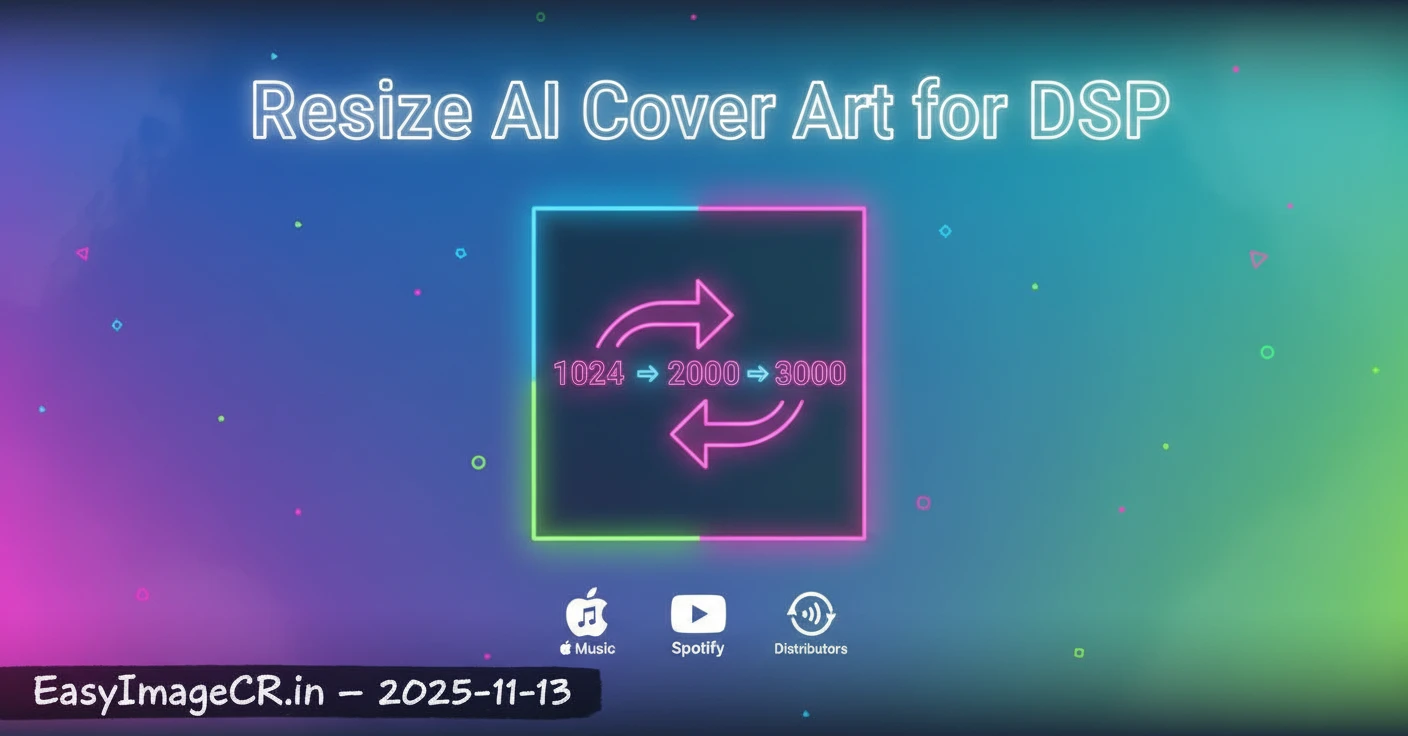
Pro Tip: If the AI art includes fine text, upscale in stages (e.g., 1024 → 2000 → 3000).
Distributor quick-check
- DistroKid / TuneCore / CD Baby / Ditto / RouteNote: 3000×3000 minimum, JPG/PNG, RGB.
- Apple Music: At least 3000×3000; avoid edge text.
- Spotify / YouTube Music: 3000×3000 preferred; watch file size limits.
Example: Maya’s workflow
Maya upscaled her 1024×1024 image to 2000 px using a free AI tool, then used EasyImageCR.in to resize to 3000×3000 and slightly sharpened it. The 90%-quality JPG passed DistroKid checks and stayed crisp on all platforms.
Pro Tip: Keep a 1200×1200 version for social media — fast loading and ideal for Instagram teasers.
Common FAQs
Can I just stretch a 1024 image to 3000?
No. Use AI upscalers or multi-step resizing for best results.
Which format is best?
JPG (RGB) is safest; PNG is fine but heavier.
AI art unlocks creativity, but prep for DSPs is key. With EasyImageCR.in, you can upscale while preserving magic and meet professional standards easily.
Try resizing now at EasyImageCR.in
⬅ Back to Blogs