Why Your Email Signature Image is Huge (and How to Fix It)
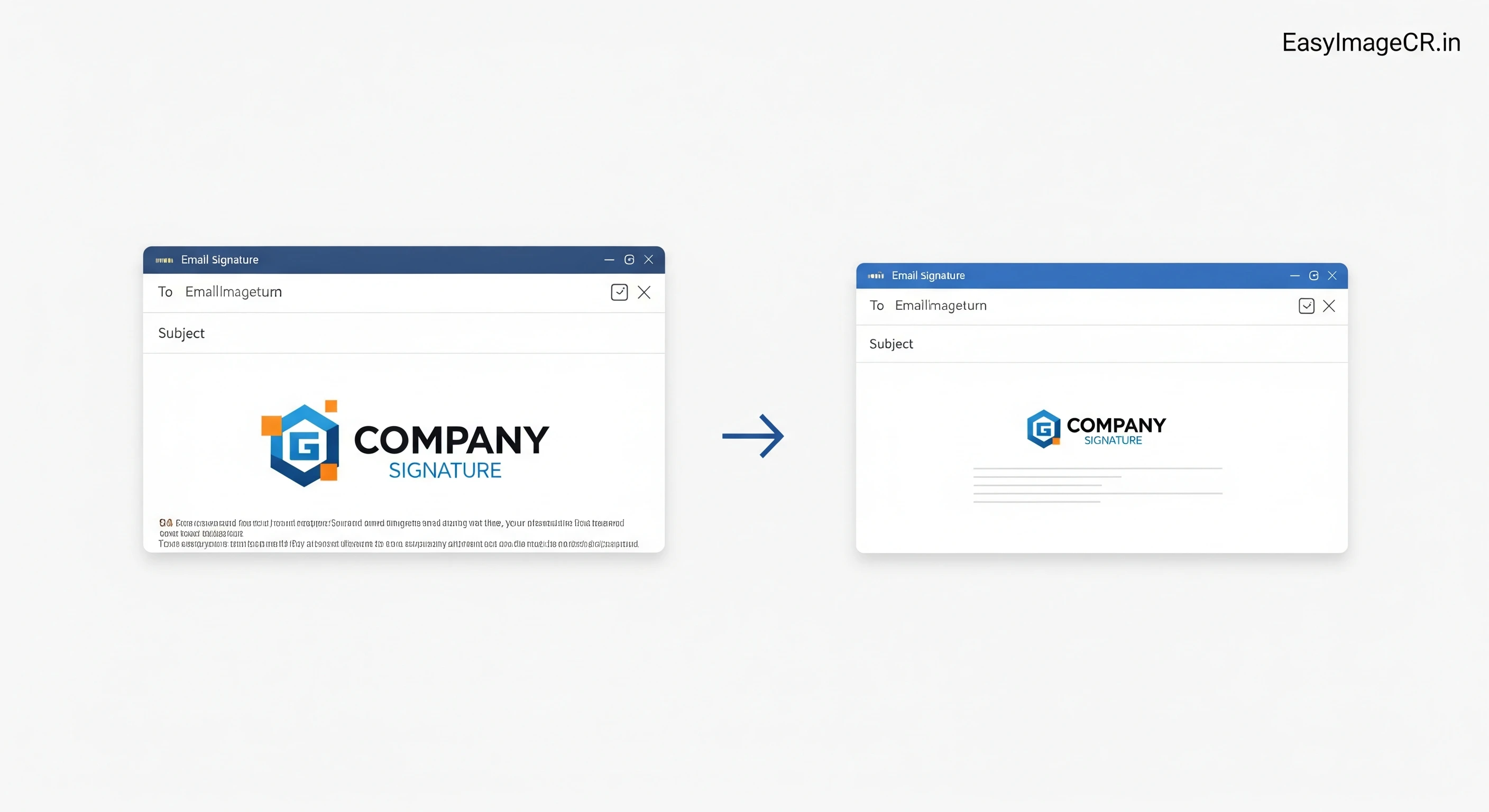
Summary: If you send an email and your logo appears as a giant, screen-filling poster, it's because of DPI scaling. This guide explains the exact pixel dimensions you need for Gmail, Outlook, and Apple Mail signatures.
It is the most embarrassing tech fail in the business world. You send a professional email, but to the recipient, your company logo looks like a billboard. It takes up their entire screen, forcing them to scroll down just to read your message.
Why does this happen? You probably uploaded a high-resolution "Print Ready" logo file. While that file looks great on a business card, screens interpret it differently.
The Golden Rule: 300 Pixels Wide
For email signatures, physical size matters more than quality. Most email clients (like Outlook) do not automatically shrink images to fit. They display them at full 100% resolution.
- Maximum Width: Never exceed 300 - 400 pixels wide.
- Maximum Height: Aim for 80 - 100 pixels tall.
- Format: PNG (for transparent backgrounds) or JPG (for photos).
If your current logo file is 2000px wide, it will display at 2000px wide on the recipient's screen—which is wider than most laptops!
✅ How to Resize Your Logo Correctly
Don't just drag the corners in your email editor. That only changes how it *looks* to you, not the file itself. You need to resize the actual image file.
Step 1: Upload to EasyImageCR
Drag your giant logo file onto our tool.
Step 2: Set Width to 300
In the "Width (px)" box, type 300. Ensure "Maintain Ratio" is checked so it doesn't look squashed.
Step 3: Check Format
If your logo has a transparent background (no white box around it), select PNG. If it's a square photo of your face, select JPEG.
Step 4: Download & Replace
Click "Resize & Download". Now go to your Gmail or Outlook settings, delete the old giant image, and upload this new, perfectly sized file.
Bonus: Retina Displays
Some people want their logo to look extra sharp on iPhones ("Retina" screens). To do this, you can use the "2x" rule:
- Resize your image to exactly 600px wide (double the displayed size).
- In your email signature HTML settings, set the *display* width to 300px.
This packs more pixels into the small space, making it look crisp without taking up half the screen.
⬅ Back to Blogs