How to Resize Photos for Email Attachments (Gmail, Outlook & Yahoo)
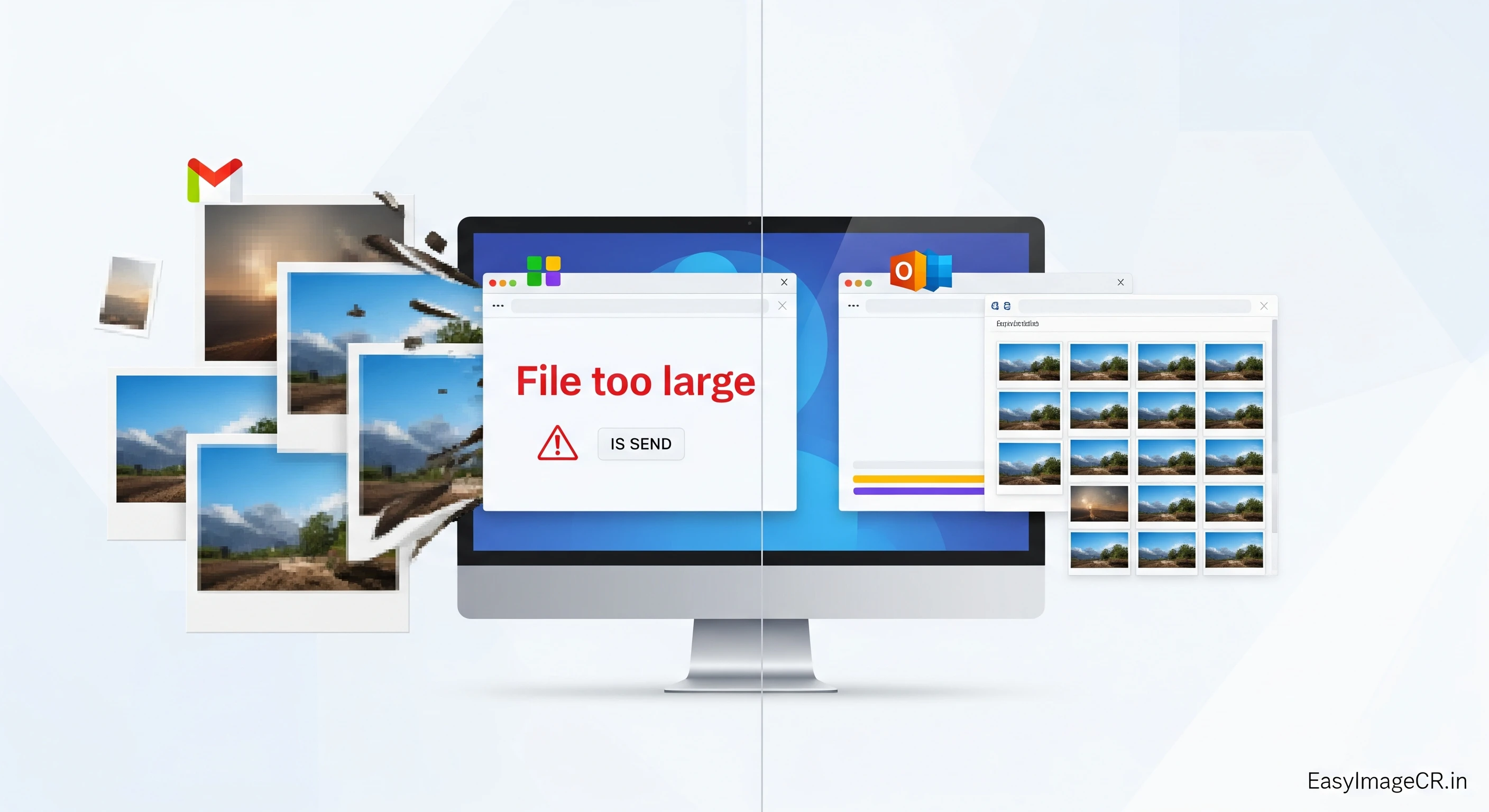
Summary: Most email providers have a strict 25MB limit for attachments. A single photo from a modern phone can be 5-10MB, meaning you can only send 2 or 3 at a time. This guide shows you how to shrink 50+ photos at once so they all fit in a single email.
It is a classic problem. You want to email a folder of holiday photos to your family, or a set of site inspection photos to a client. You drag them into Gmail, the blue bar loads halfway, and then stops.
"Attachment size exceeds the allowable limit."
Modern cameras take huge, high-quality photos (often 4000x3000 pixels). While these are great for printing posters, they are terrible for email. You don't need 4K resolution to view a photo on a phone screen.
The "25 MB" Barrier
Almost every major email provider (Gmail, Yahoo, Outlook, AOL) enforces a 25 MB total limit per email. This includes the text, headers, and all attachments combined.
- iPhone 15 Photo: ~5 MB (HEIC) or ~10 MB (JPG).
- DSLR Camera Photo: ~15-25 MB (RAW/JPG).
This means you can often send only 2 to 5 photos before hitting the limit. Sending 50 photos would require sending 10 separate emails. That is annoying for you and the recipient.
✅ The Fix: Bulk Resize to "HD" Quality
You can shrink the file size by 90% without making the photo look blurry on a screen. The trick is to resize the dimensions to standard HD (1920x1080).
Use the Bulk Resize tab on EasyImageCR.in to process your whole folder at once.
Step 1: Drag & Drop All Photos
Select all 20, 30, or 50 photos and drag them into the "Bulk Resize" box. Don't worry, our tool processes them on your computer, so it's instant.
Step 2: Set Width to 1600px or 1920px
In the "Width" box, type 1600. This is large enough to look great on any laptop or tablet screen, but small enough to drastically reduce file size.
Step 3: Convert to WEBP (Optional but Powerful)
If you select WEBP as the format, you can often get the file size down to 200KB per photo. This means you could fit 100 photos in a single email!
Step 4: Download All
Click "Batch Process". Your browser will download the optimized versions. You can now attach all of them to one email with room to spare.
Why Not Use Google Drive or WeTransfer?
Cloud links are great, but they have friction.
1. The recipient has to request access (if you forget permissions).
2. They have to click a link and download a ZIP file.
3. Links expire (WeTransfer).
Sending actual attachments is permanent, immediate, and easiest for older relatives or busy clients who just want to see the pictures now.
⬅ Back to Blogs