Twitch Emote & Sub Badge Size Guide 2026 (Instant Resizer)
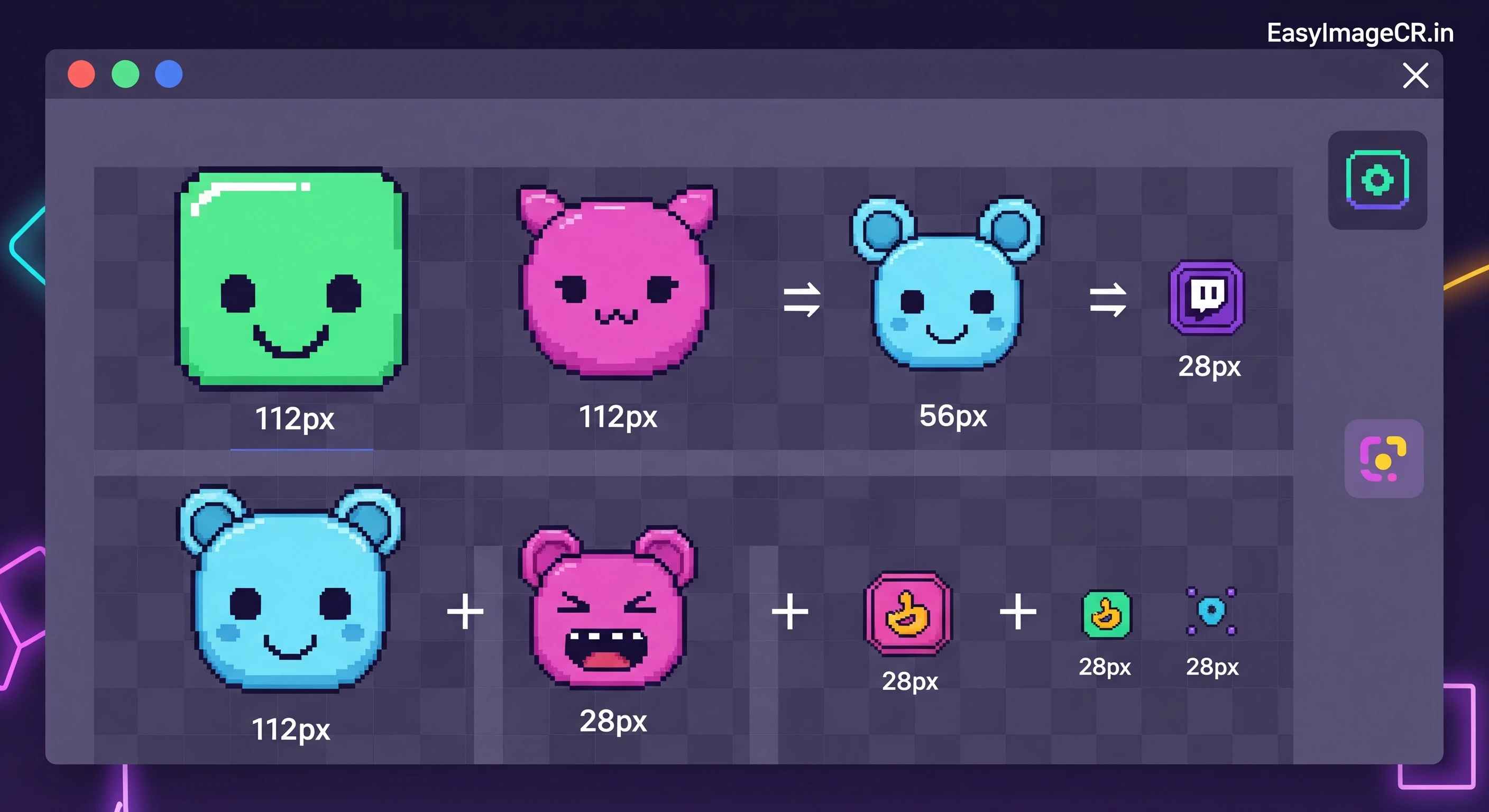
Summary: Twitch requires very specific image sizes for Emotes, Sub Badges, and Channel Points. If your file is 1 pixel off, it gets rejected. This guide gives you the 2026 cheat sheet and a free tool to resize them perfectly.
If you are a streamer, your Emotes and Badges are your brand. They are how your community interacts and how you make money. But Twitch is notoriously strict about file uploads.
You might have a great piece of art from a designer, but when you try to upload it, you see: "Image must be 112x112 pixels" or "File size too large."
Don't panic. You don't need to ask your artist for a revision. You can fix it yourself in seconds.
1. Twitch Emote Sizes (The "Standard" Mode)
Twitch now has an "Auto-Resize" mode, but it often makes images look blurry. For the crispest quality, pros recommend uploading the three manual sizes yourself:
- Size 1: 28 x 28 pixels
- Size 2: 56 x 56 pixels
- Size 3: 112 x 112 pixels
- Format: PNG (Must be transparent!)
- File Size: Under 1MB
2. Subscriber Badges
These appear next to a user's name in chat. Because they are so tiny, they need to be high-contrast and exact.
- Sizes: 18x18, 36x36, and 72x72 pixels.
- Format: PNG (Transparent).
3. Profile Banner & Offline Screen
Don't forget the big graphics for your channel page.
- Profile Banner: 1200 x 480 pixels (Target this for best fit).
- Offline Screen: 1920 x 1080 pixels (16:9 ratio).
- Panels (About Me): 320 pixels wide (Height can vary).
✅ How to Create Perfect Emotes (Free Workflow)
Use EasyImageCR.in to process your art without losing the transparent background.
Step 1: Crop to Square
Emotes must be square. Upload your image and click the "1:1" crop button in the "Edit Tools" menu. Center the face or object nicely.
Step 2: Resize to 112px
In the "Width (px)" box, type 112. Ensure "Maintain Ratio" is checked.
(Repeat this step for 56px and 28px if you want to upload all three manual sizes).
Step 3: The Transparent Format
CRITICAL: In the "Format" dropdown, select PNG (or WEBP).
If you select JPG, the background will turn white, and the emote will look like a box in chat (the "new streamer mistake"). Always use PNG for emotes.
Step 4: Download
Click "Resize & Download". Your emote is ready for the dashboard.
Pro Tip: Bulk Resize for Sub Badges
If you have 6 different sub badges (1 month, 3 months, 6 months, etc.), use our Bulk Resize tab!
1. Select "Bulk Resize".
2. Drag in all 6 badge files.
3. Set Width to 72.
4. Download all of them instantly. Then repeat for 36 and 18.
⬅ Back to Blogs