How to Resize & Crop Photos for WhatsApp Status (HD Quality)
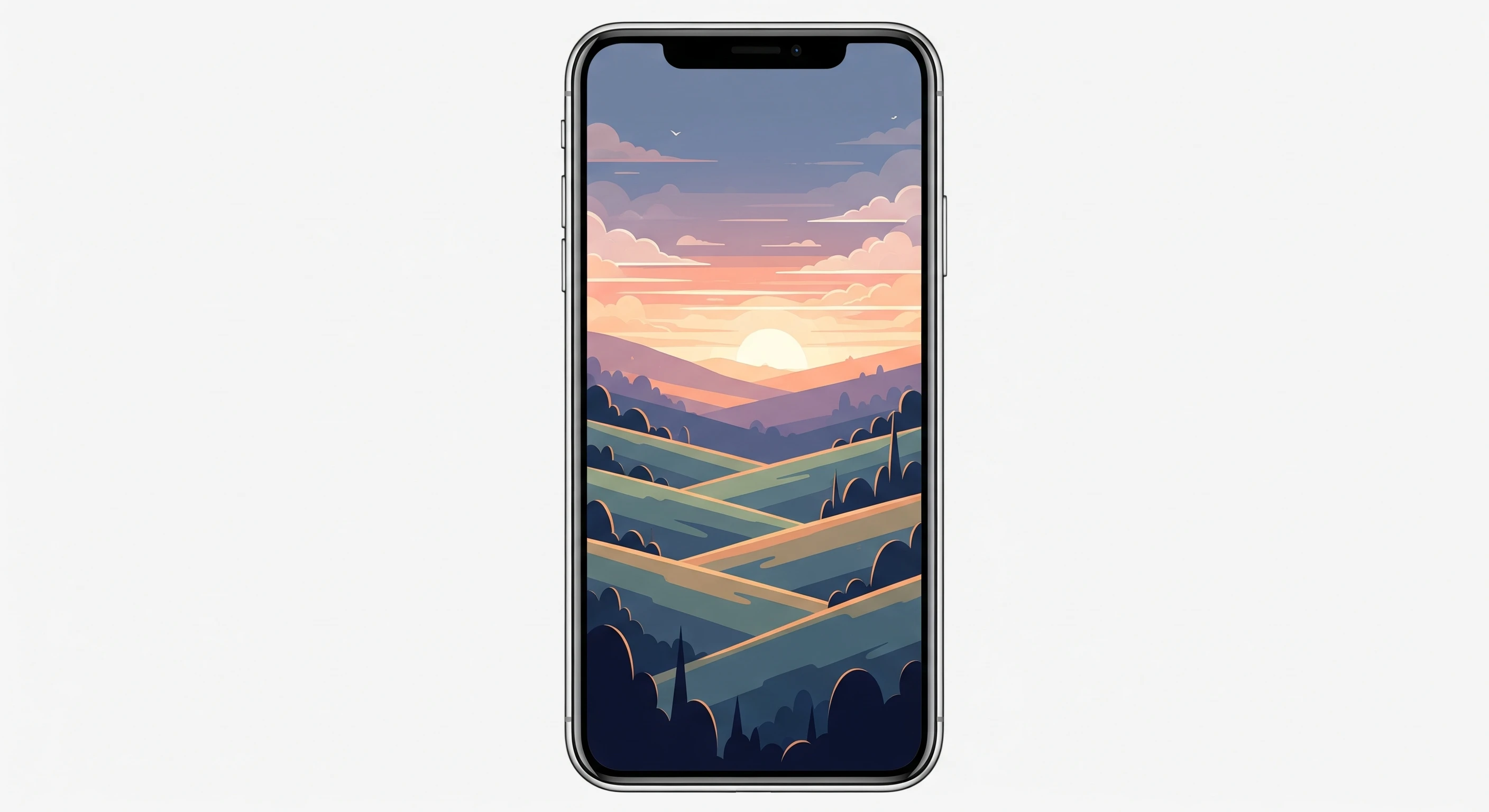
Summary: WhatsApp Status is designed for vertical screens (9:16 ratio). If you upload a horizontal photo, WhatsApp zooms in blindly, often cutting off important details. The secret is using our tool to Crop to 9:16 and Resize to HD before you upload.
We've all been there. You take a fantastic group photo or a beautiful landscape shot. You go to share it on your WhatsApp Status, and the app forces you to crop it awkwardly. Suddenly, your friend on the left is missing, or the beautiful sunset is cut in half.
Why does this happen? WhatsApp Status (like Instagram Stories) is built for a mobile-first experience. It expects images to fill the entire vertical phone screen.
The Magic Resolution: 1080 x 1920 Pixels
To get the best quality, you need to match the standard mobile display settings:
- Aspect Ratio: 9:16 (Vertical)
- Resolution: 1080 x 1920 pixels
- Format: JPEG or WEBP
If your photo matches these numbers, it will display smoothly from edge to edge without WhatsApp applying its own blurry compression.
✅ Solution 1: Control the Crop (The 9:16 Trick)
Instead of letting WhatsApp randomly zoom into your photo, use EasyImageCR to select exactly which part of the photo you want to feature.
How to do it in seconds:
- Open EasyImageCR.in and upload your photo.
- Click on the "🎨 Show Edit Tools" button.
- In the crop options, click "9:16" (labeled for Stories/Reels).
- The tool will instantly calculate the perfect vertical slice of your image.
- Click "Resize & Download".
Now, when you upload this to WhatsApp, what you see is exactly what you get—no surprises.
✅ Solution 2: Prevent "Blurry" Status Updates
Does your status look crisp on your phone but blurry on your friend's phone? This happens because your original file size was too large, so WhatsApp's server crushed it aggressively.
The Fix: Optimize the File Size
1. Upload your photo to EasyImageCR.
2. Change "Compression Mode" to "Target Size (KB)".
3. Enter 150 or 200 KB.
4. Download.
By providing a lighter file (under 200KB) that is already resized to 1080px width, WhatsApp doesn't need to compress it further, keeping your image sharp and HD.
Bonus: Make It Pop with Borders
If you really want to stand out, try adding a border before you download. In the Edit Tools panel, slide the "Border Width" to add a colored frame around your image. This prevents UI elements (like the reply button or text input) from covering up the bottom of your photo.
⬅ Back to Blogs